
LifeOS Skill: AI Can Manage My Notes
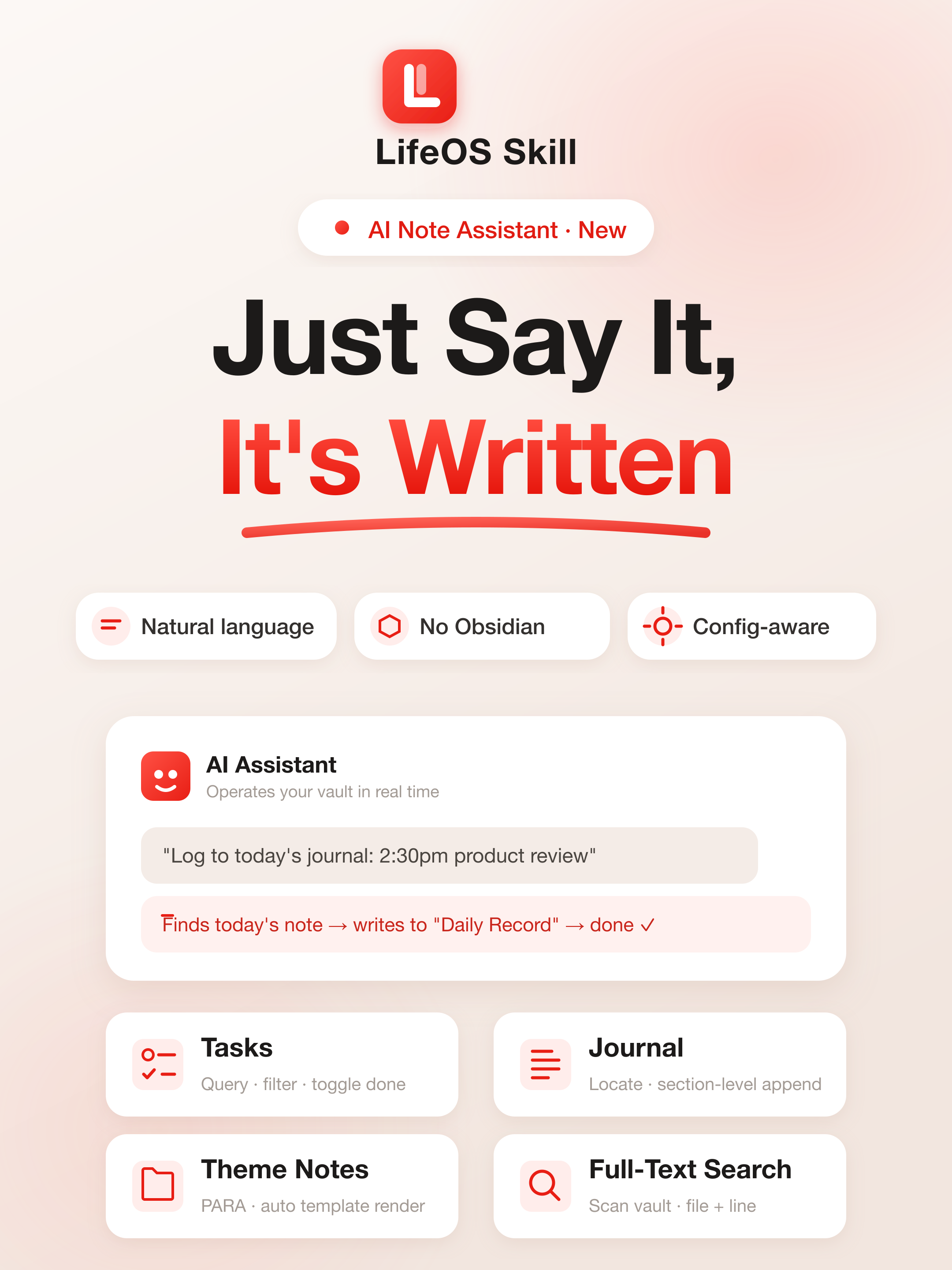
I wrote a skill for LifeOS, and now AI can help manage my notes.
I have used LifeOS for more than a year, and I still love the PARA + periodic notes system.
But one problem kept getting in the way: the friction of recording was too high.
An idea appears → open Obsidian → go to today's daily note → scroll to "Daily Record" → type → close it. Those few steps are enough for countless ideas to disappear into "I'll skip it this time."
So last month I built an AI skill for LifeOS.
LifeOS Skill helps AI understand and maintain a Markdown Vault. It works with the Obsidian + LifeOS Pro plugin path and also runs directly in Aino Desktop and Aino Mobile. See Obsidian vs Aino, or follow the Aino LifeOS Skill guide.
What is it?
In one sentence: after installing the LifeOS Skill Bundle, agents such as Claude Code and Codex learn how to operate your LifeOS vault.
The bundle contains five independently triggered Skills. lifeos owns shared configuration and safety rules; lifeos-today handles today and periodic reviews; lifeos-board handles Workflow/PARA boards; lifeos-onboarding handles setup and migration; and lifeos-content handles notes, attachments, AI Wiki, and dashboards. The agent loads only the domain rules needed for the current request.
It knows what your PARA folders are called, how your daily-note paths are formatted, where your templates live, and what section headings you use. It also honors the folder, date format, and template configured in Obsidian's core Daily Notes plugin. It reads all of that from your real configuration automatically, so you do not have to explain it manually.
You describe what you want in natural language, and the AI executes it.
The Skill is not limited to an Obsidian vault. It can also initialize or take over any local Markdown folder while preserving images, PDF, DOC, PPT, audio, video, and other attachments.
What can it do?
Quick capture in one sentence
"Log to today's journal: 2:30pm product requirements review."
The AI locates today's note, finds the "Daily Record" section, inserts the line, and finishes. You do not even need to open Obsidian.
Query and complete tasks
"What are my tasks today?"
"Mark the quarterly report task as done."
The AI can return the task list or directly change - [ ] to - [x].
Create project notes with templates
"Create a project called Q3 Product Redesign."
The AI finds your project template, renders {{snapshot:Project}}, injects the theme tag, and creates the index file. The result matches what you would create manually.
Generate AI Wiki pages for topics
"Organize the AI Wiki for all projects."
The AI can generate or update .AI.md files for topic-level notes such as projects, areas, and resources. It turns the theme note and its direct materials into an AI-readable summary with a one-sentence overview, core judgments, a material map, and next ingestion priorities.
These .AI.md files are topic guides for AI. They are not created for ordinary daily notes, captures, meeting notes, imported articles, or one-off source documents.
Full-text search
"Where did I write about superlinear returns?"
The AI scans the vault and returns the file and line number.
Weekly and monthly reviews
"Add a review paragraph to this week's weekly note."
The AI locates the correct file and writes the content in the right place.
You can also ask:
"Review this week using tasks actually completed this week, open work, the weekly note, and recently changed files."
The Skill uses task completion time rather than confusing “due this week” with “completed this week.” Recent files include durable change evidence; when the filesystem can prove only a modification time, the Skill reports the change as unknown instead of guessing that the file was newly created.
Add tags and properties to PDF, image, and Office files
"Add #contract and status signed to Assets/Agreement.pdf."
The Skill leaves the binary attachment untouched and maintains a hidden sibling Markdown metadata file. It reads and merges existing properties first, and treats the attachment and its metadata as one pair during moves or renames.
Generate an HTML dashboard for a topic
"Generate an HTML dashboard beside my quarterly-planning project note."
The Skill reads the topic note, its .AI.md page, and high-signal materials, then writes a same-name .html file in the same directory. The standalone dashboard organizes status, key judgments, next actions, risks, a material map, and source links. It is a decision surface, not a Markdown export or a replacement for the source note.
Give a new knowledge base an agent workspace
When initializing Memos, IPO, GTD, or PARA, the Skill also prepares root-level AGENTS.md, SOUL.md, and STYLE.md files for working rules, agent identity, and communication style. Existing files are reported as conflicts and are never overwritten automatically.
MEMORY.md is no longer generated or upgraded by a template. An agent creates or edits it only after an explicit request to remember something, and a template migration leaves existing durable memory untouched.
Initialize or migrate a local folder
"Help me set up this folder as a PARA knowledge base."
The Skill inventories the folder, recommends Memos, IPO, GTD, PARA, or OPC from easiest to hardest, previews the exact structure, and writes only after confirmation. Existing scattered files are classified in bounded batches with a destination, reason, and confidence for each suggestion.
Memos is the capture-first choice for daily bullets and tasks. It has no classification destinations, so historical material is not moved into daily notes; choose IPO, GTD, or PARA when existing material needs organization.
PARA keeps Capture and Express separate, and uses Archive as the fallback for old material that cannot be classified reliably. GTD Inbox remains a method stage for new unclarified items. Link, path, and collision checks run before a confirmed migration batch moves files.
The inventory sees attachment paths and media types but does not automatically extract binary DOC, PPT, audio, or video contents.
An existing Memos, IPO, GTD, or PARA vault can also be migrated to another
template. The agent first records whether the scope is new content only,
selected history, or full history, then tracks the settings-field diff and each
move batch. Periodic notes, custom templates, activation, AI, calendar, and sync
settings remain unchanged by default. Template files, query pages, .AI.md
files, and dashboards are not bulk-classified as ordinary material.
Files remain in place when Markdown links, Wikilinks, shared attachments, name collisions, or meaning are unsafe. The profile manifest changes only after the target entry point, task queries, links, and selected migration scope are verified. OPC migrations use the separate OPC Skill.
Why is it useful?
Because it does not think for you. It executes for you.
Tone, tag choice, and whether something is worth recording are still your decisions. The skill removes the operational friction: opening Obsidian, finding the folder, finding the right section, and writing the content.
Recording changes from an interruption into a side path: keep doing your work, say one sentence, and let AI write it down.
How to start
Install the complete LifeOS Skill Bundle into the current vault:
You can also install from GitHub and select all five Skills discovered in the repository:
Then tell your agent:
It will understand the shape of your note system, and you can manage your notes conversationally from there.
To begin onboarding, say:
Check and update an installed Skill Bundle
When the Skill is already installed inside the current vault, inspect its version and local changes first:
After reviewing the result, update it with:
The CLI updates all five Skills together, backs up locally modified managed files by domain, migrates the former single-Skill layout, and removes obsolete managed files after backup. It never downgrades a newer installed bundle.
What happens if installation fails?
You can also inspect, install, or update the complete bundle from Skills management in DeepAsk settings.
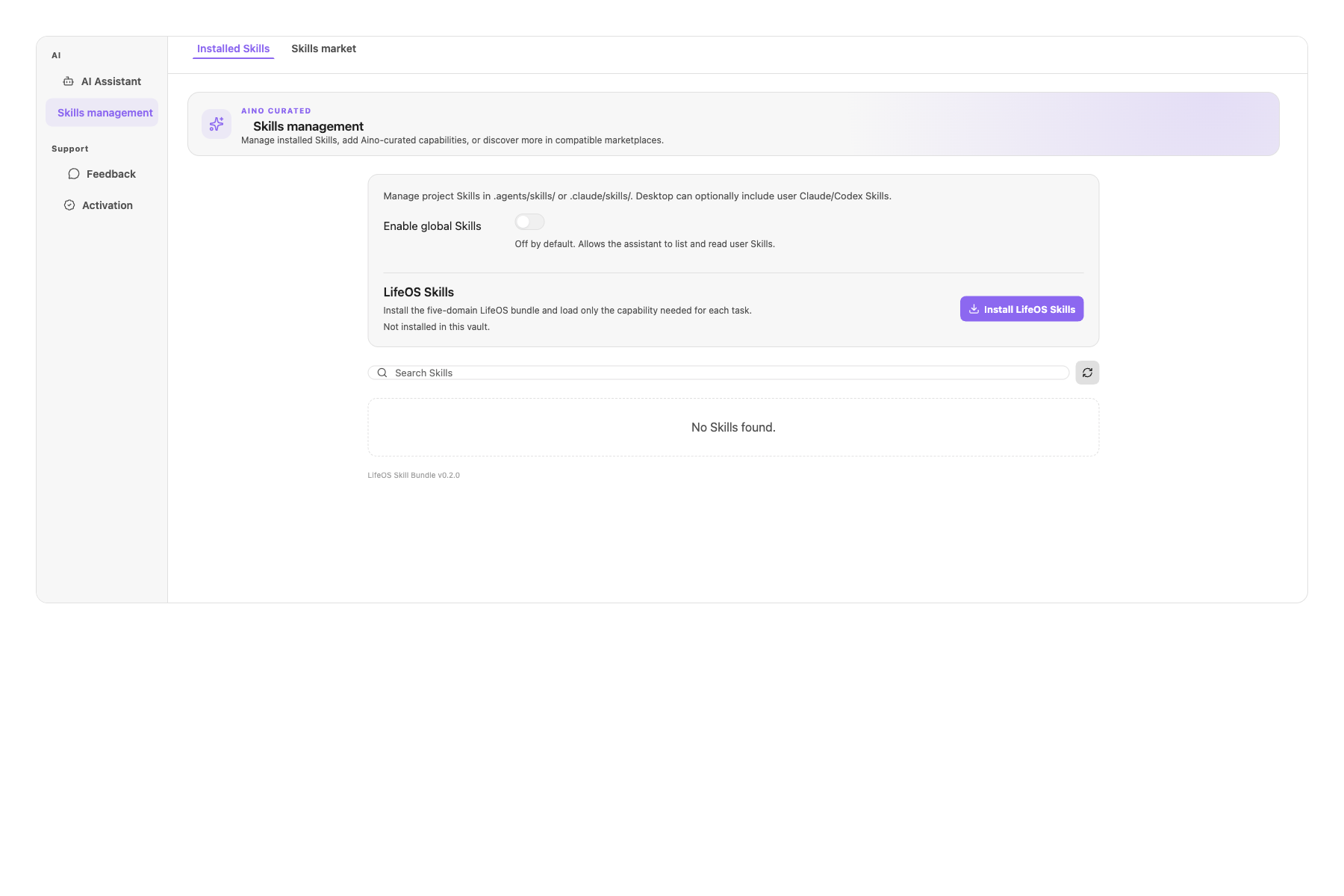
The installer treats each installation or update as one transaction:
- Before writing, it reads and records the exact previous state of every managed target, including bundle files, the manifest, and obsolete files scheduled for removal.
- If writing a Skill, creating a backup, removing an obsolete file, or writing the final manifest fails, it restores previous contents in reverse order and removes files created by the failed attempt.
- Legacy, invalid, or locally modified installations are backed up under
.agents/skills/lifeos/.backup/<timestamp>/before replacement. - Stale cleanup is limited to installer-owned Skill names proven by an unmodified valid manifest. Arbitrary names and unsafe traversal paths from a manifest are never trusted.
- Custom files inside a Skill directory, unrelated Skills, and extra files referenced only by a modified manifest are preserved.
- If rollback itself fails, the reported error includes both the original failure and the rollback failure instead of presenting an incomplete install as successful.
After a successful update, run skill status again and verify the bundle version and each domain Skill. When local modifications existed before the update, review the backup before merging custom content into the new version.
Links
#RedSkill #LifeOS #Obsidian #PARA #ClaudeCode #AINotes #AgentSkill #KnowledgeManagement #Productivity