
Install the LifeOS Pro + DeepAsk Bundle
Your bundle arrives in one email with two different activation codes: one for LifeOS Pro and one for DeepAsk. Use the same purchase email for both plugins, but do not swap the two codes.
- Complete the first installation on a computer. Obsidian Mobile cannot copy plugin folders directly.
- Back up your vault first if it already contains your notes.
- “Vault folder” below means the folder opened by Obsidian, not the downloaded LifeOS Pro package.
Step 1: Download and extract the complete package
Use the complete-package link in the bundle email. After extraction, open the package's Plugin folder and locate these two folders:
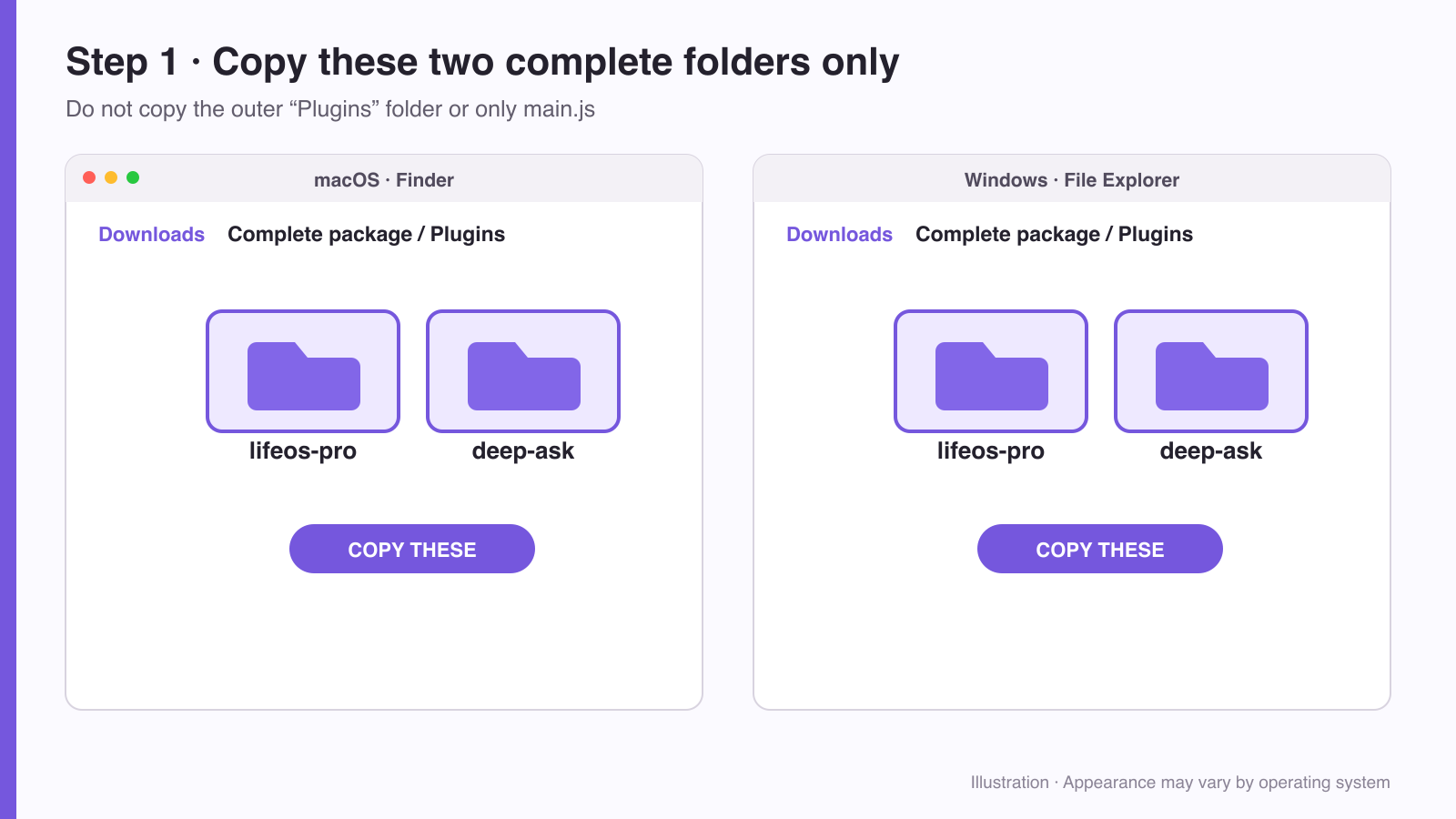
Copy the complete lifeos-pro and deep-ask folders outlined in purple. Your operating system may look slightly different, but the folder names must match exactly.
Copy the complete lifeos-pro and deep-ask folders. Do not copy only main.js, and do not place the outer Plugin folder inside Obsidian.
Step 2: Open the correct plugin folder
In Obsidian, open “Settings → Community plugins” and click the folder button beside “Installed plugins.” Your system will open the current vault's .obsidian/plugins folder directly.
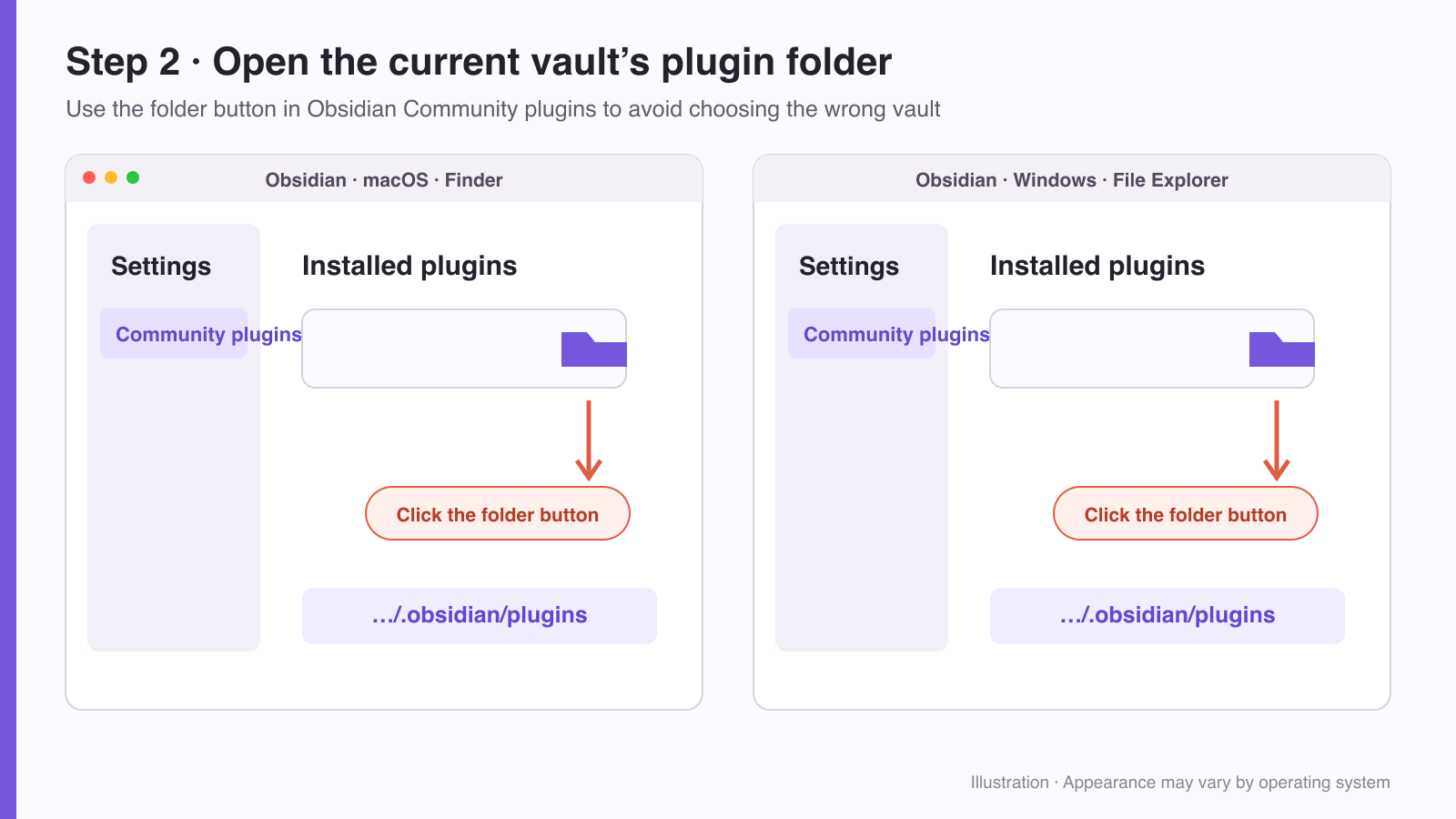
After clicking the folder button marked by the arrow, confirm that the opened path ends with .obsidian/plugins.
The destination must be:
.obsidian is hidden. In macOS Finder, press Command + Shift + .. In Windows File Explorer, choose “View → Show → Hidden items.”
Step 3: Copy both plugin folders
Copy lifeos-pro and deep-ask into .obsidian/plugins. The final structure must be:
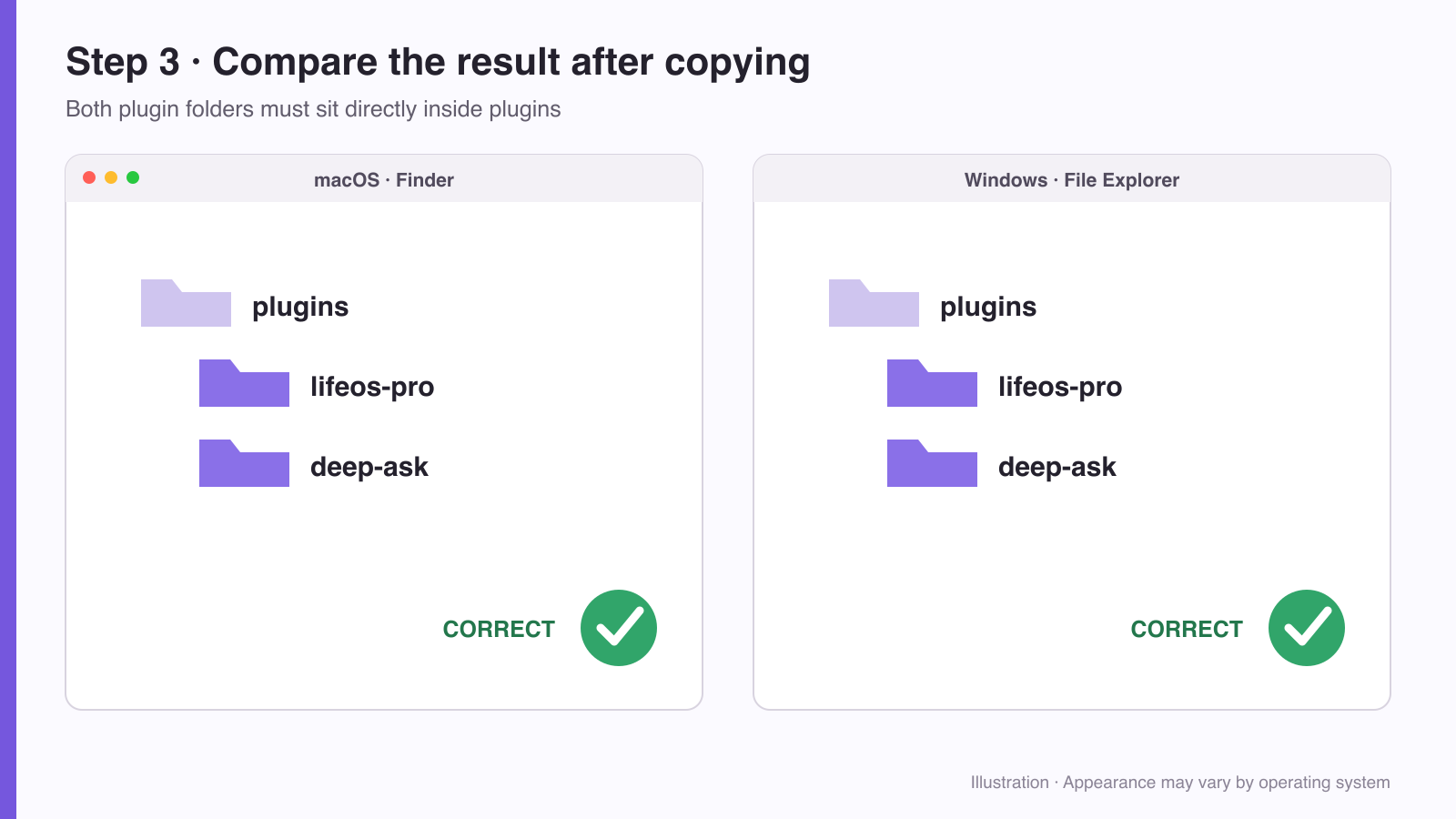
On both macOS and Windows, the two plugin folders must appear directly inside plugins.
If you see .obsidian/plugins/Plugin/lifeos-pro, the folders are one level too deep. Move lifeos-pro and deep-ask directly under plugins.
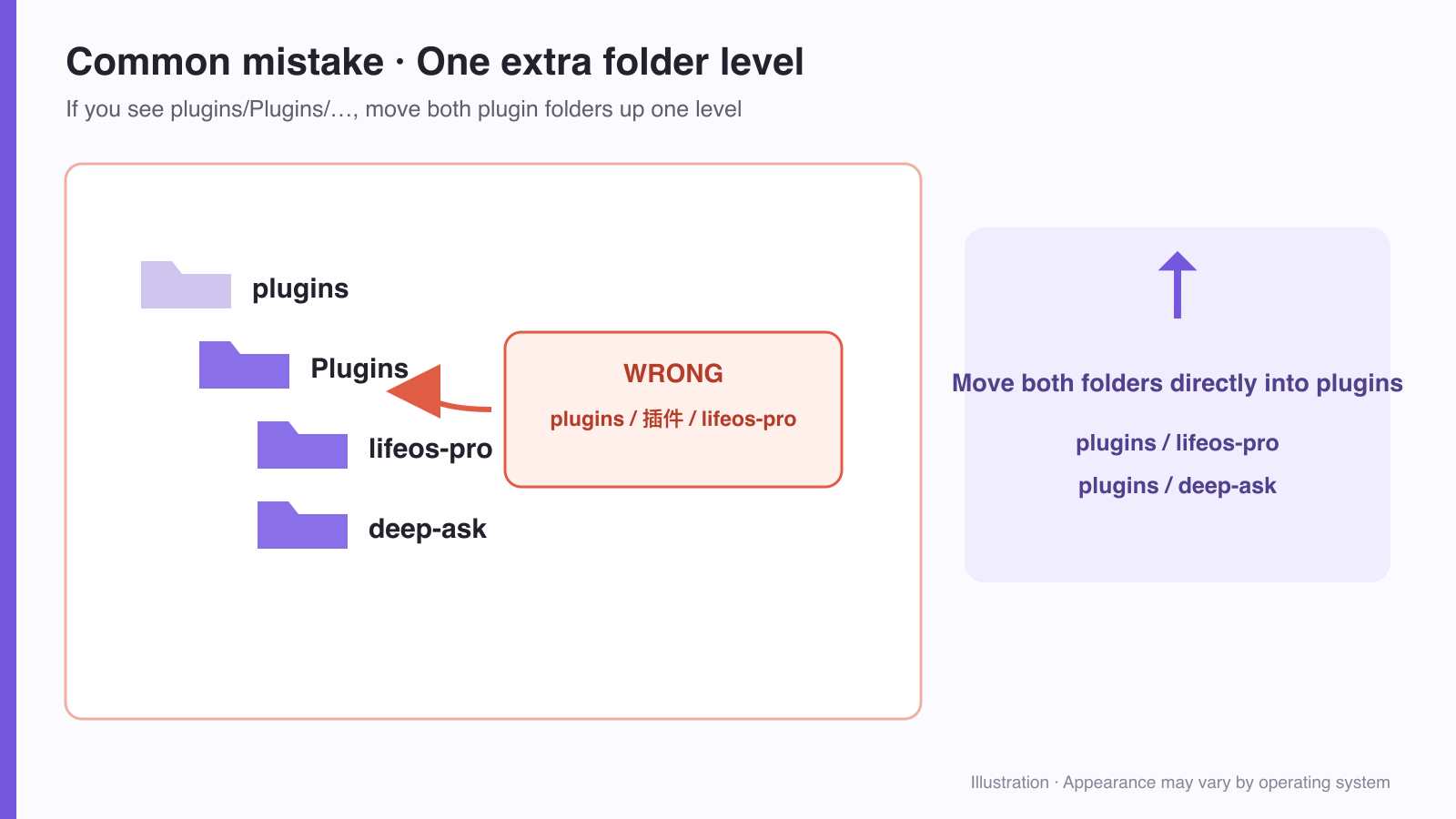
The image above shows the most common mistake: there must not be another Plugin folder between plugins and lifeos-pro.
Step 4: Enable both plugins
Return to Obsidian and reload or restart it. Open “Settings → Community plugins,” confirm that LifeOS Pro and DeepAsk both appear, and turn on both switches.
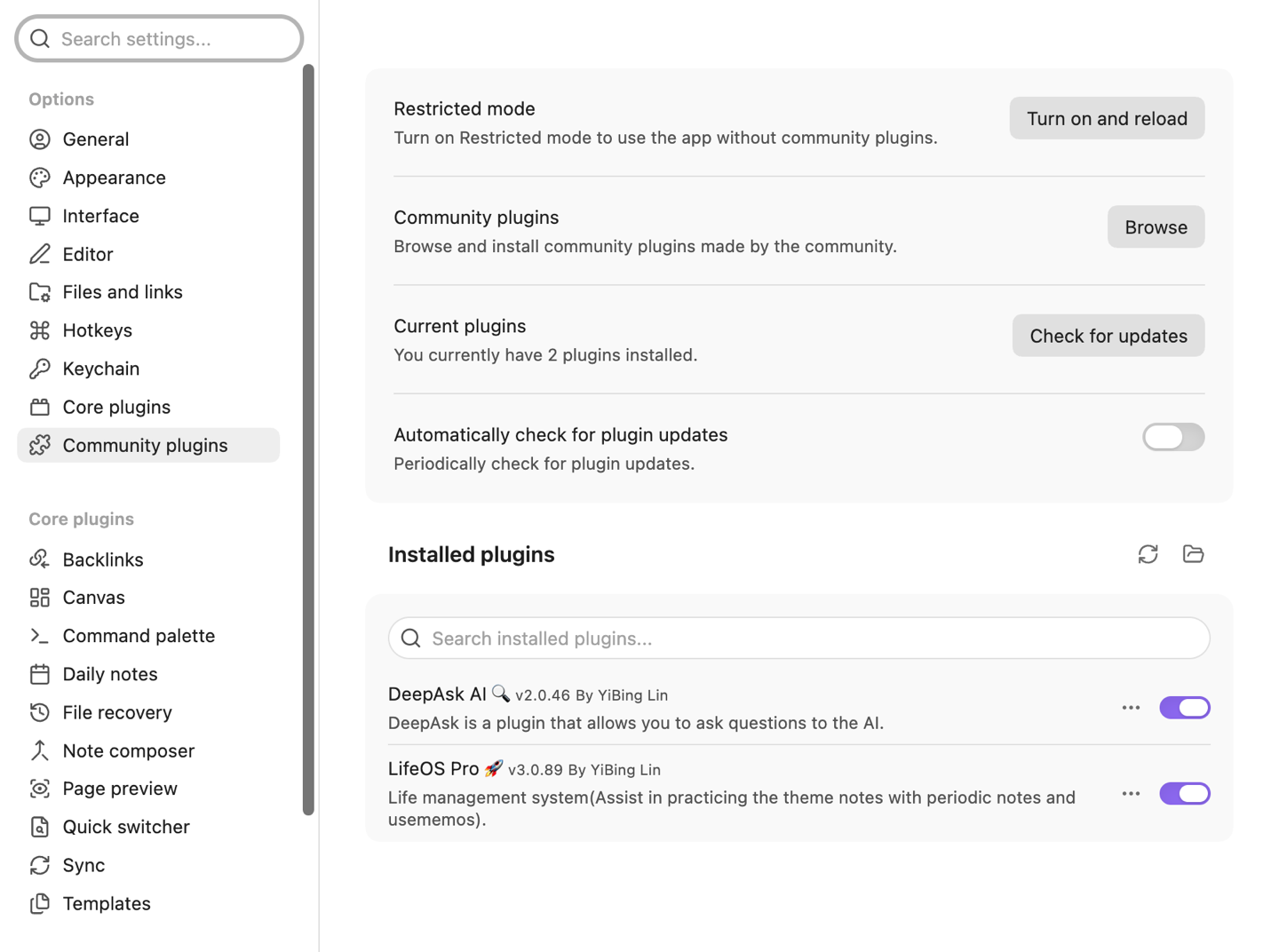
Check both product names and both switches in the screenshot. Enabling only one plugin does not activate the other product.
Step 5: Activate LifeOS Pro
- Select LifeOS Pro in the settings sidebar.
- Open “Activation & Upgrade.”
- Enter the email used for the bundle purchase.
- Paste only the code labeled LifeOS Pro activation code in the email.
- Select “Upgrade Now.”
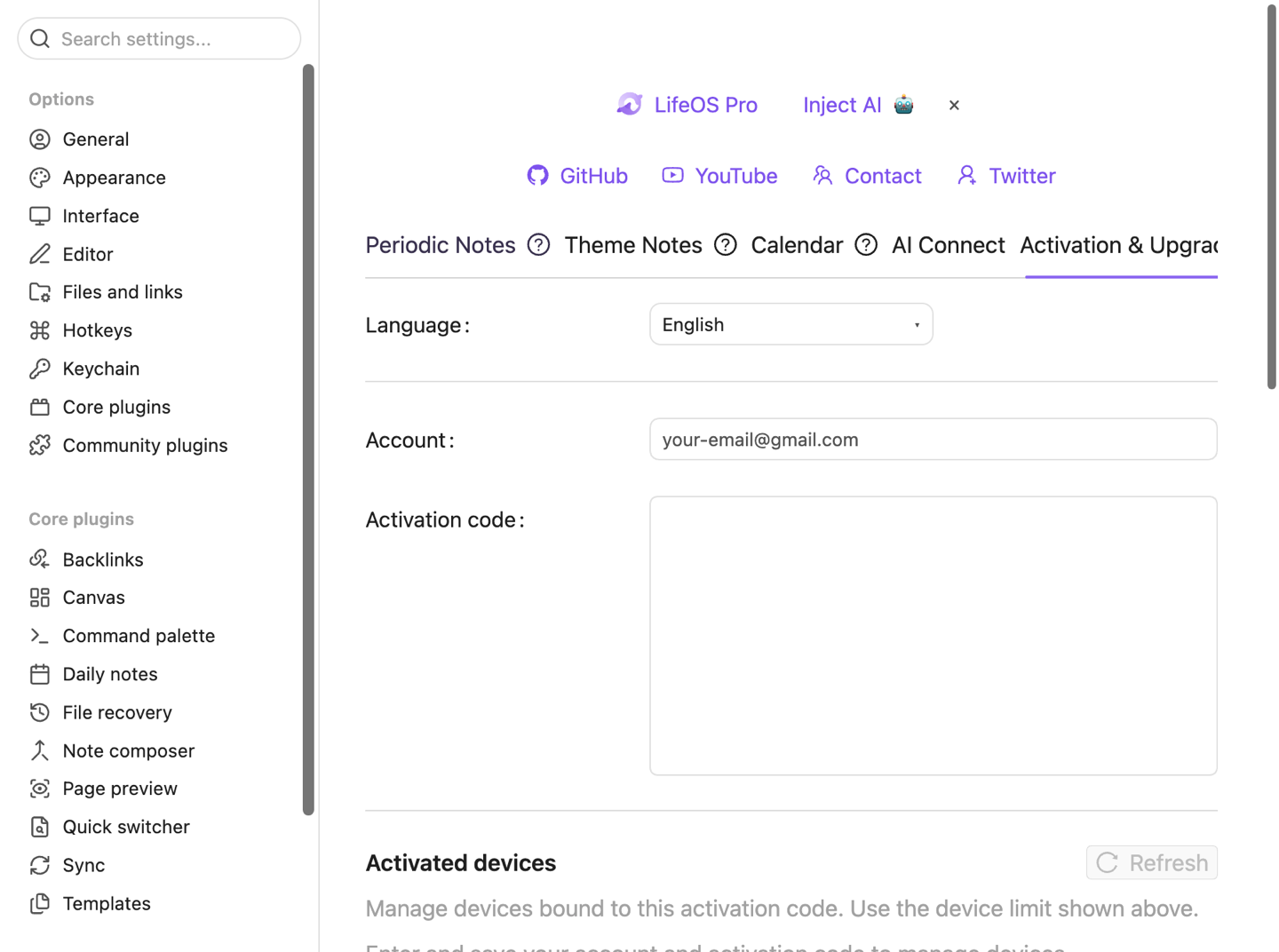
Do not paste the DeepAsk code here. A successful activation displays the activated state and current version.
Step 6: Activate DeepAsk
- Select DeepAsk in the settings sidebar.
- Open “Activation & Upgrade.”
- Enter the same purchase email.
- Paste the code labeled DeepAsk activation code in the email.
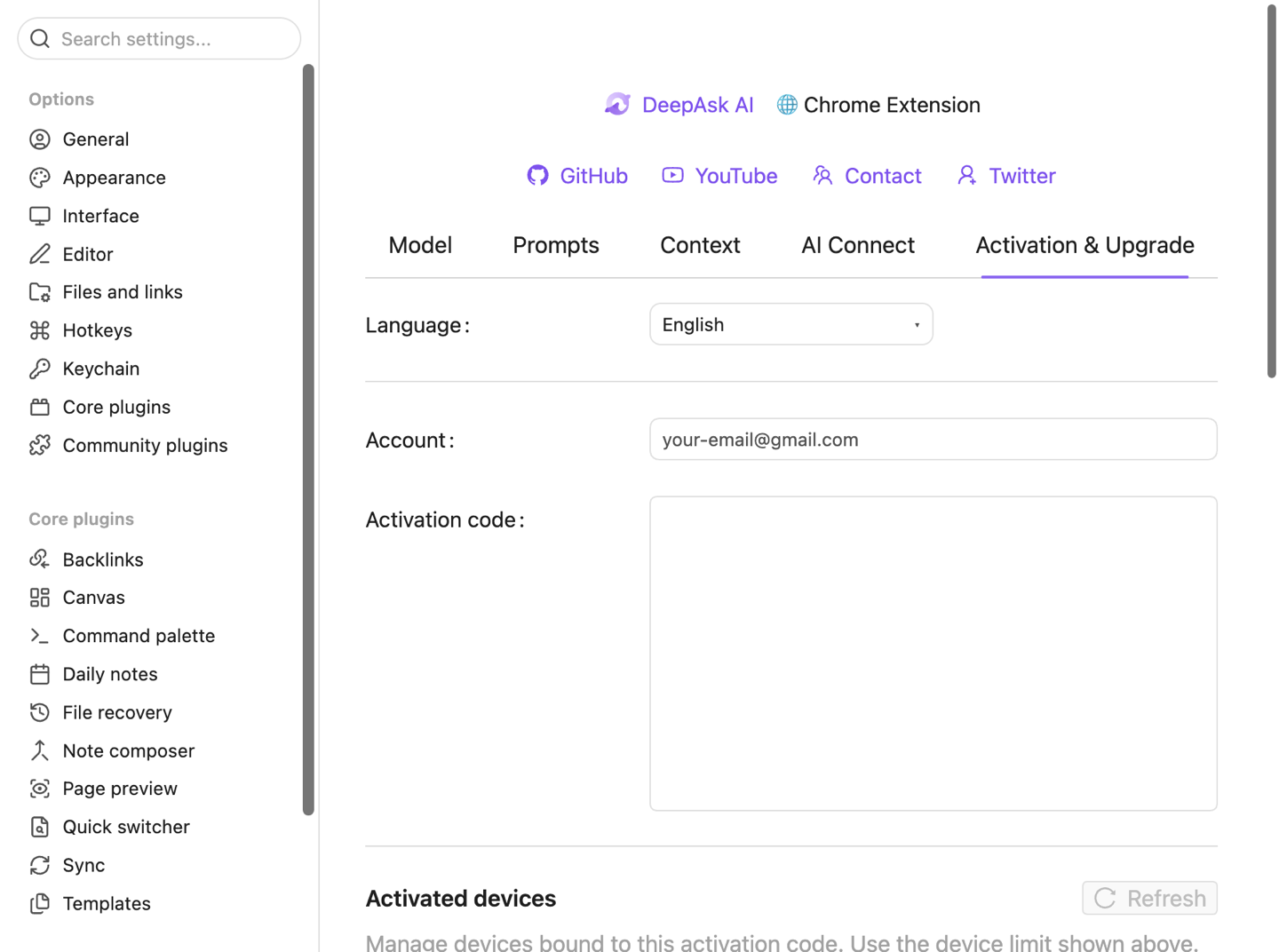
Step 7: Confirm the installation
The bundle is ready when:
- both plugin switches are on under Community plugins;
- both Activation & Upgrade pages show an activated state; and
- the LifeOS Pro and DeepAsk entries appear in Obsidian's left ribbon.
Continue with LifeOS Pro usage and the DeepAsk guide.