
Task Workspace
Bring tasks from daily notes, projects, and reading notes into one workspace. Tasks stay in their original Markdown files, so you can review and edit them without switching between notes.
Open the Task Workspace
In Obsidian, open the LifeOS Big Calendar, then select Task at the top.
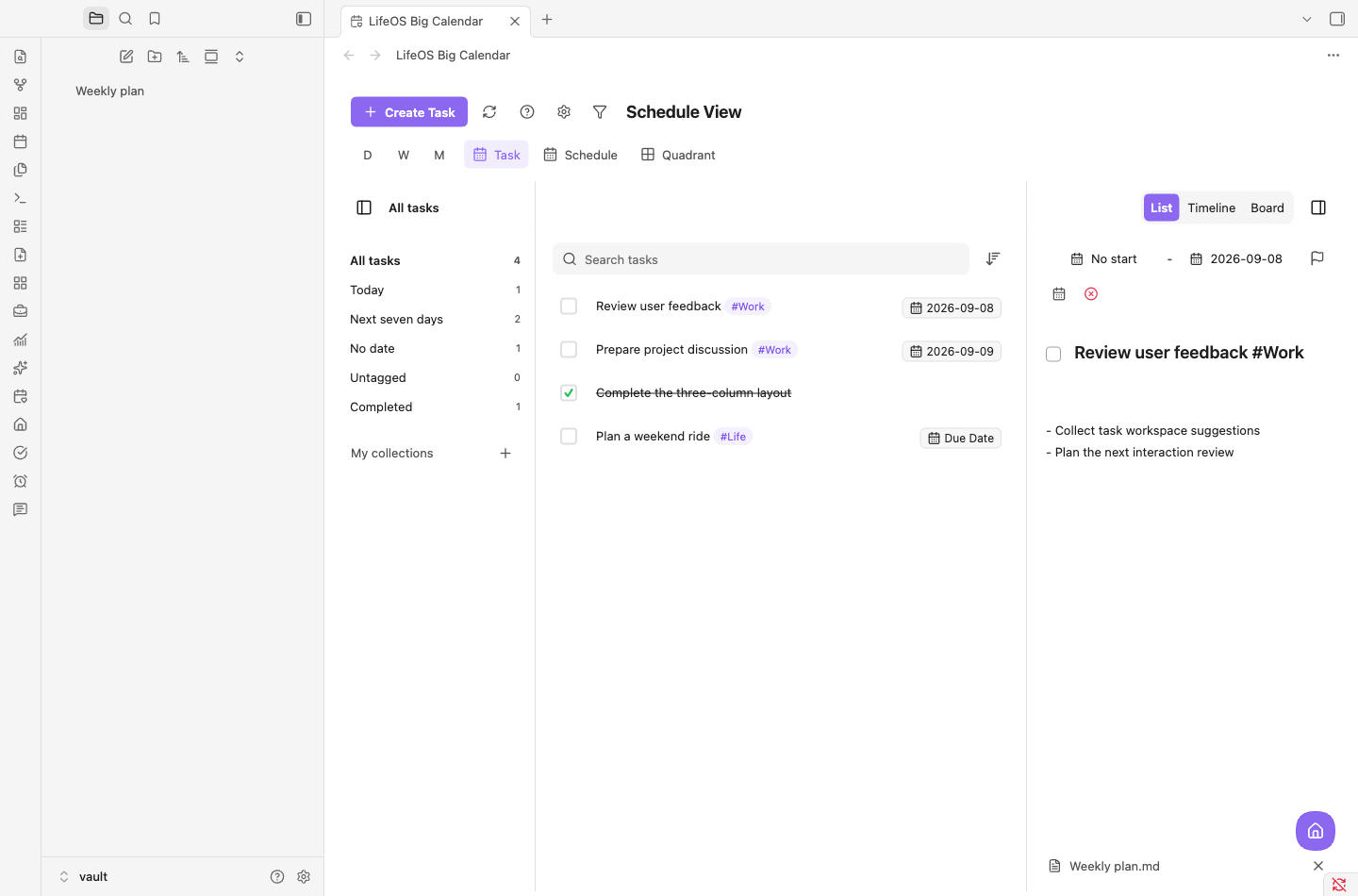
Collections, Tasks, and Details Together
- Collections: Switch between All tasks, Today, Next seven days, No date, Untagged, and Completed, or create your own collections.
- Task list: Work through a simple list. Search for tasks, use the adjacent sort button to change their order, and enter multi-select from a task's context menu.
- Details: Select a task to edit its title, dates, and notes. Open the source note from the bottom of the panel, or collapse details for more browsing space.
The filter button at the top uses the calendar area's global filter. The same conditions remain in place when you switch between tasks, schedule, and other calendar views.
List, Timeline, and Board
Use List / Timeline / Board in the top-right corner to change how the same workspace displays tasks. The active option is highlighted.
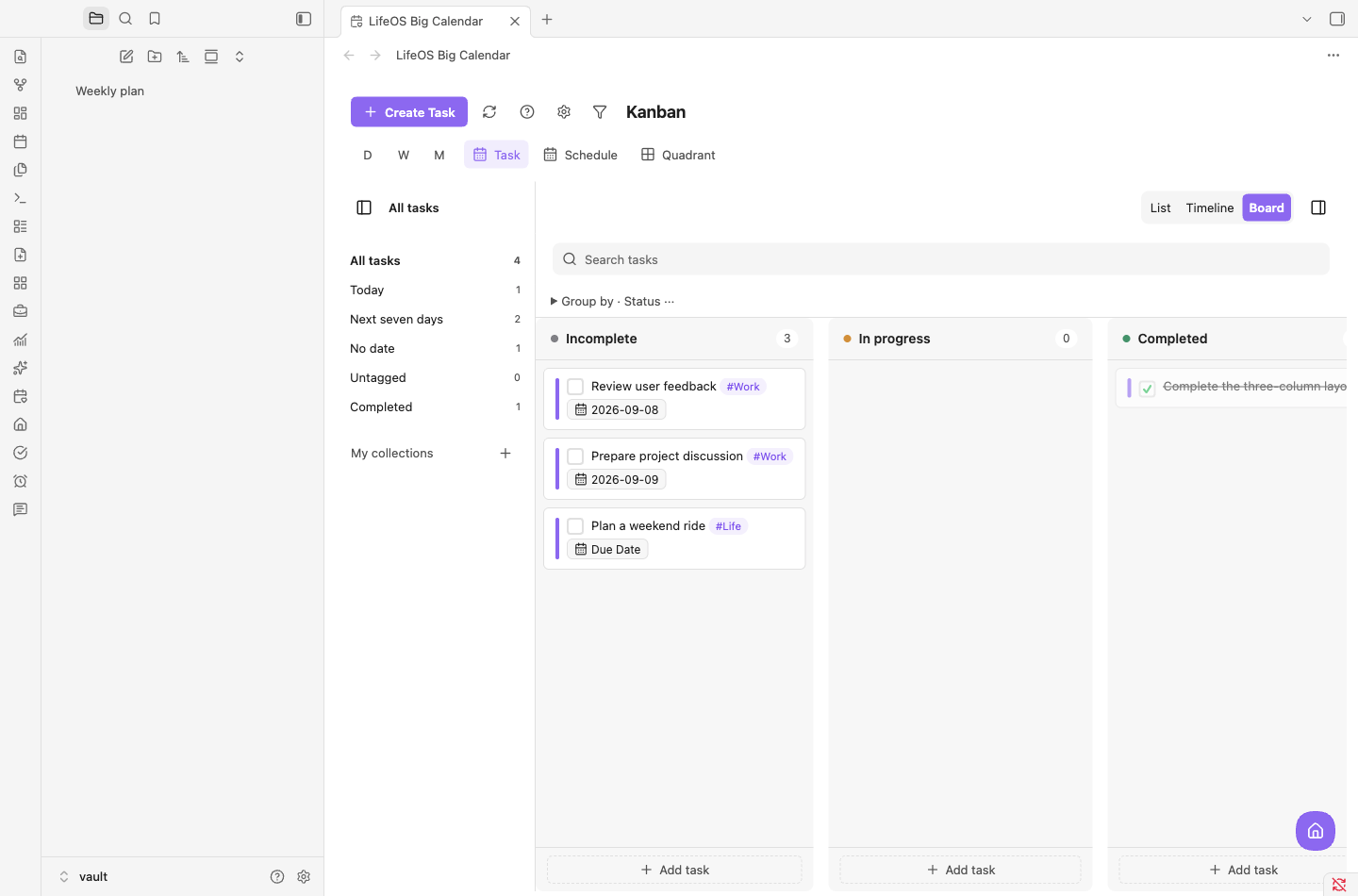
Task and Schedule are separate entries. Use Task to work through your to-dos, Schedule to browse plans by date, and day, week, or month views to plan time on the calendar. Timeline and Board now live inside the task workspace.
Save Notes Under the Original Task
Use the space below the title to record steps, context, and discussion points. Saved notes become indented bullets beneath the original Markdown task:
Checking a task also changes - [ ] to - [x] in the source note. Notes editing applies to local Markdown tasks; editing capabilities for remote calendar items depend on their source.
Next Steps
- Create tasks — Add dates, priorities, and recurrence in notes
- Calendar — Plan time in day, week, and month views
- Calendar subscriptions — Bring in external calendars