
Run a Useful Weekly Review with LifeOS
Weekly reviews often fail because you try to remember the whole week from scratch. LifeOS works better when tasks, daily notes, and theme tags have already captured the evidence.
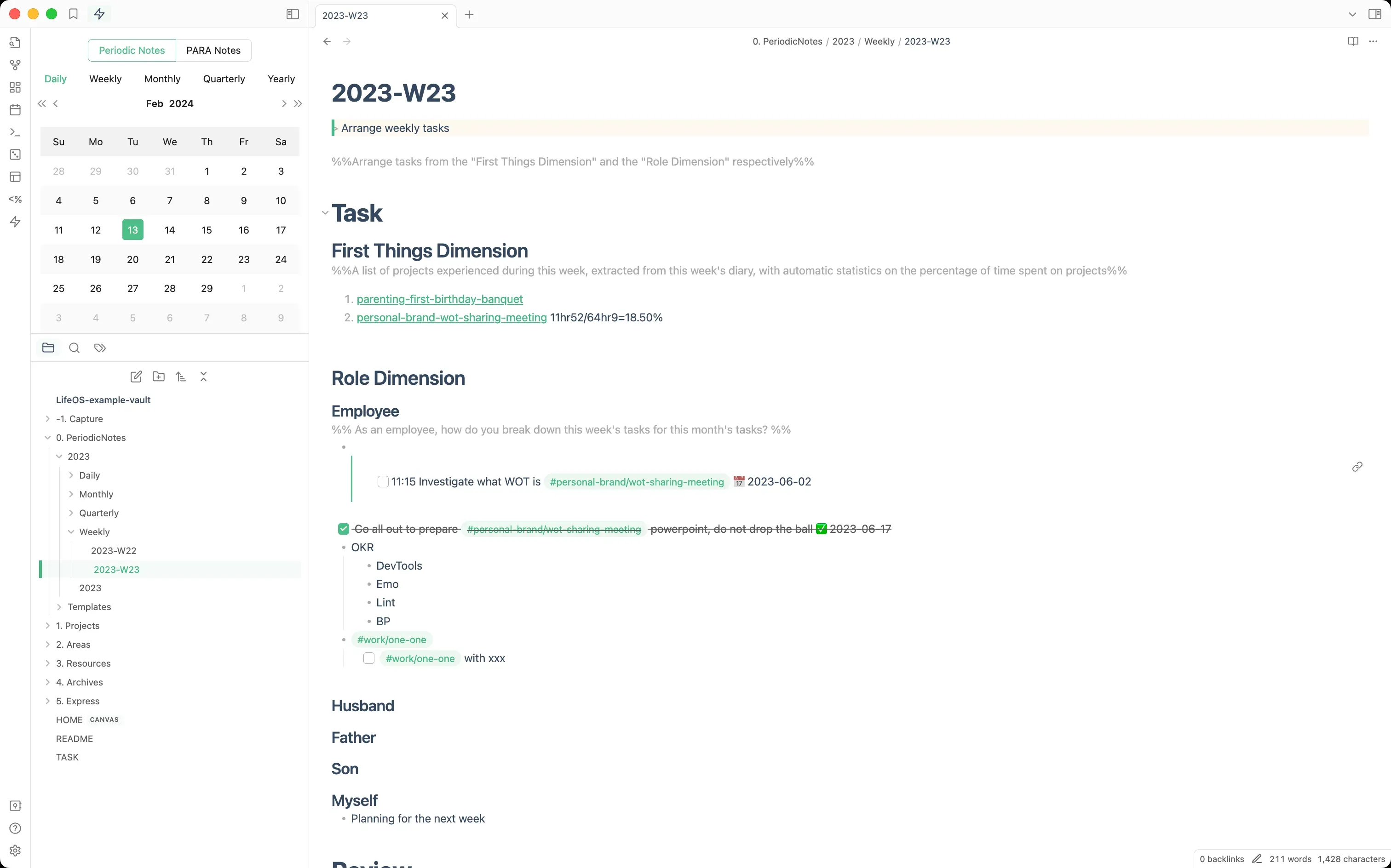
Start with completed work
Open your weekly note or weekly review note. Pull up completed tasks from the task view or review them from daily notes.
Do not only count tasks. Look for three things:
- Which tasks actually moved goals forward?
- Which tasks were reactive or administrative?
- Which tasks repeated, suggesting a system problem?
Review active projects
Open this week's active theme notes and check whether each project moved forward.
Use a compact format:
This keeps the review grounded in projects instead of feelings.
Check the calendar
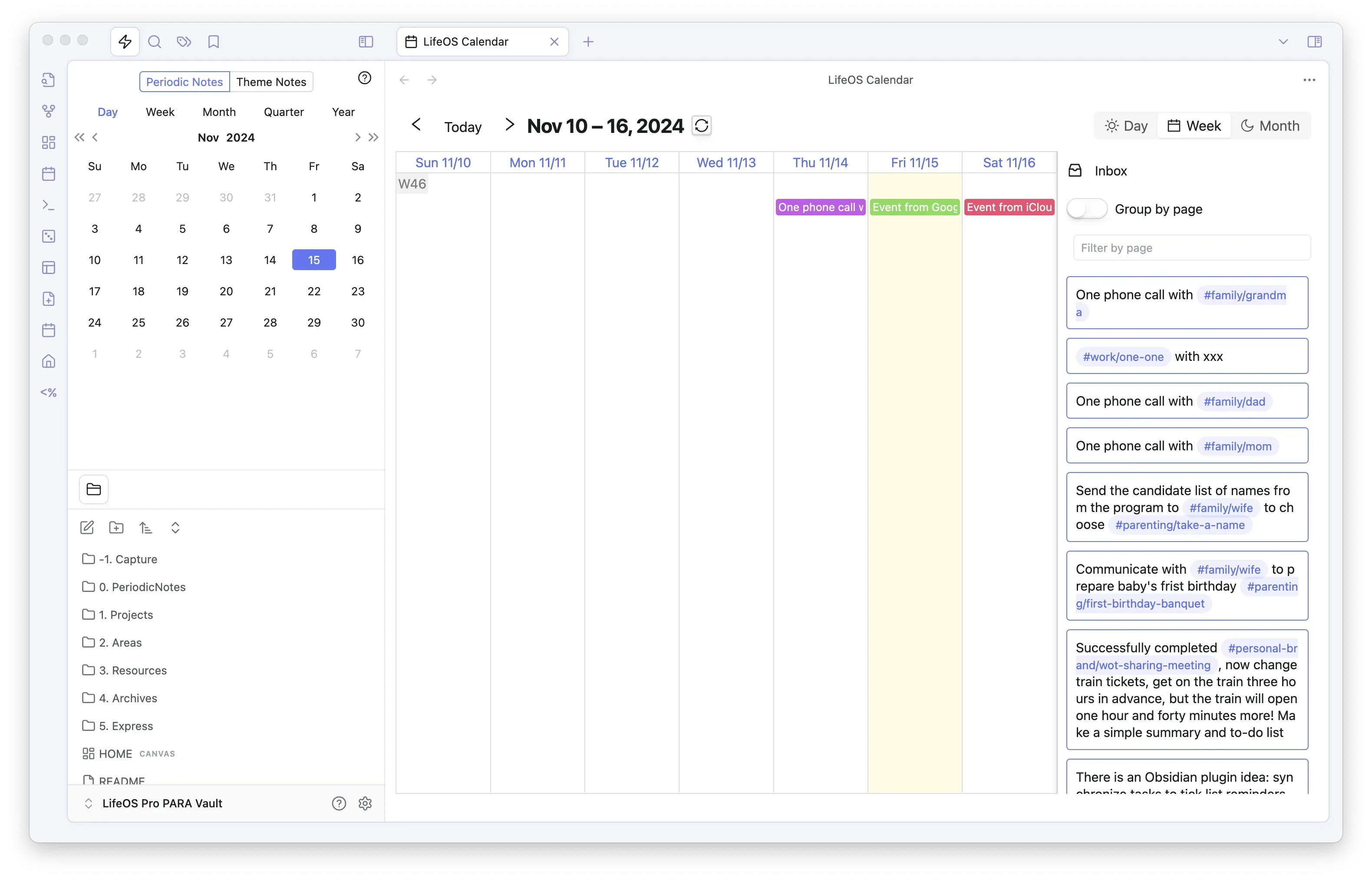
If you use Calendar Pro, review the week view. It is usually more honest than memory.
Look for:
- Whether deep work had real blocks of time.
- Whether meetings took your best hours.
- Whether urgent tasks kept leaking into evenings.
- Which tasks were repeatedly postponed.
Re-decide unfinished tasks
Do not move every unfinished task to next week. Decide again:
A clean task system makes next week easier to start.
Write next week's plan
End with three sections:
The most useful part is often "not doing". It protects attention.
If you are new to LifeOS, keep the weekly review under 20 minutes: review completed tasks, review projects, handle unfinished tasks, and write three priorities for next week.