
Manage a Full Project with LifeOS Pro
Project management is not about creating more folders. It is about keeping goals, tasks, references, and reviews connected under the same theme. In LifeOS Pro, that starts with a theme note.
Step 1: create a theme from the top-left form
In the LifeOS form at the top left of Obsidian, switch to the theme note form and enter a project theme tag, for example:
If the form is not visible, click the LifeOS icon with a + in the left sidebar. After creation, LifeOS opens the project theme index.
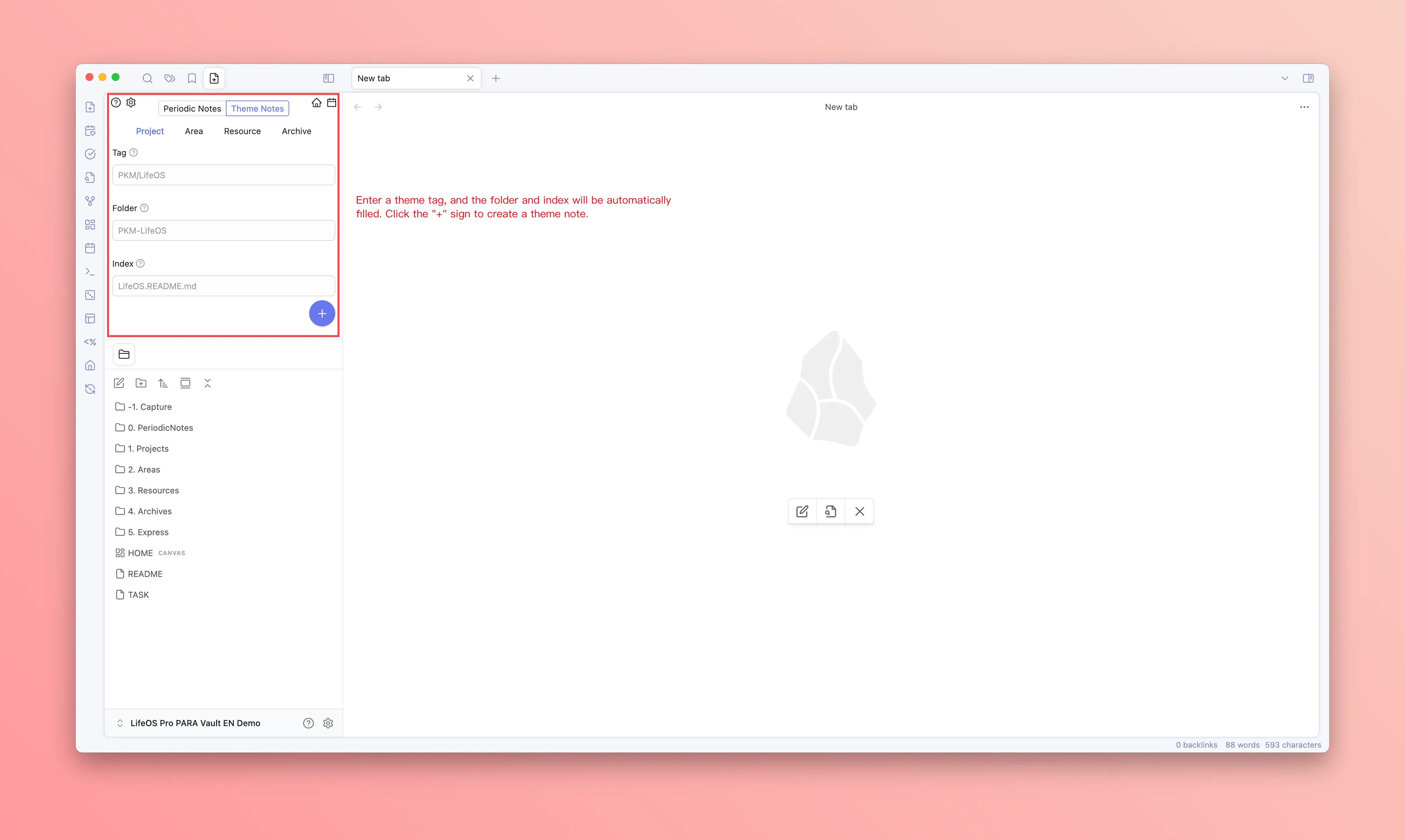
Step 2: make the project index clear
Do not start with a long document. Fill in four blocks first:
The project index defines the project. Daily notes, meeting notes, and references can stay where they are and return through the same theme tag.
Step 3: move work through the task view
Open the task view and filter by the project tag. You will see project tasks even when they are scattered across different notes.
Use three decisions:
- Do today: schedule it today or place it on the calendar.
- Waiting: keep the task, but write who or what it is waiting for.
- Not now: remove it from the active project list.
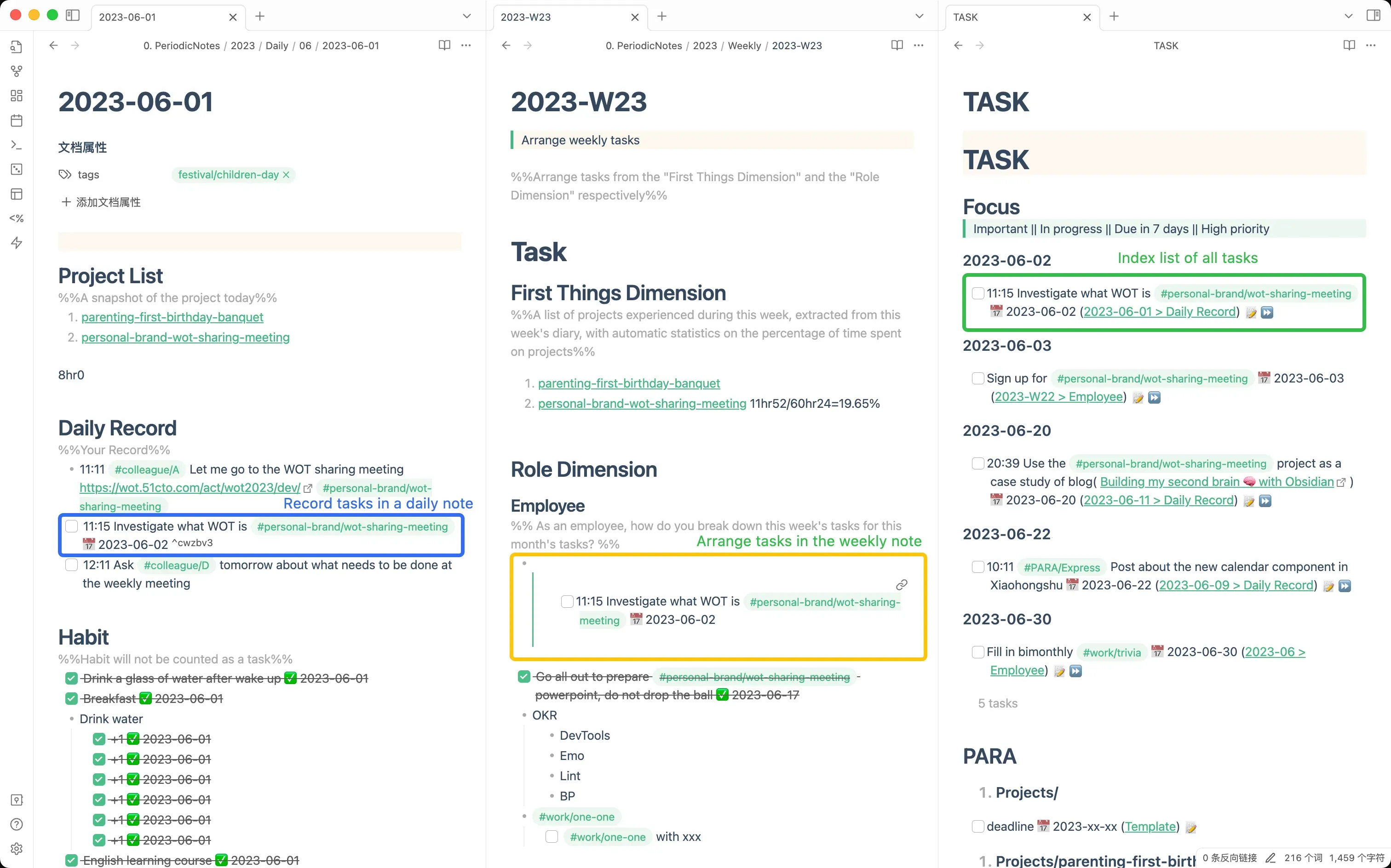
Step 4: tag meetings and references too
Project context usually gets lost in meetings, quick notes, and references. Do not copy everything into the project index. Keep the same theme tag instead.
The project index stays clean while advanced lists keep the related content visible.
Step 5: protect delivery time on the calendar
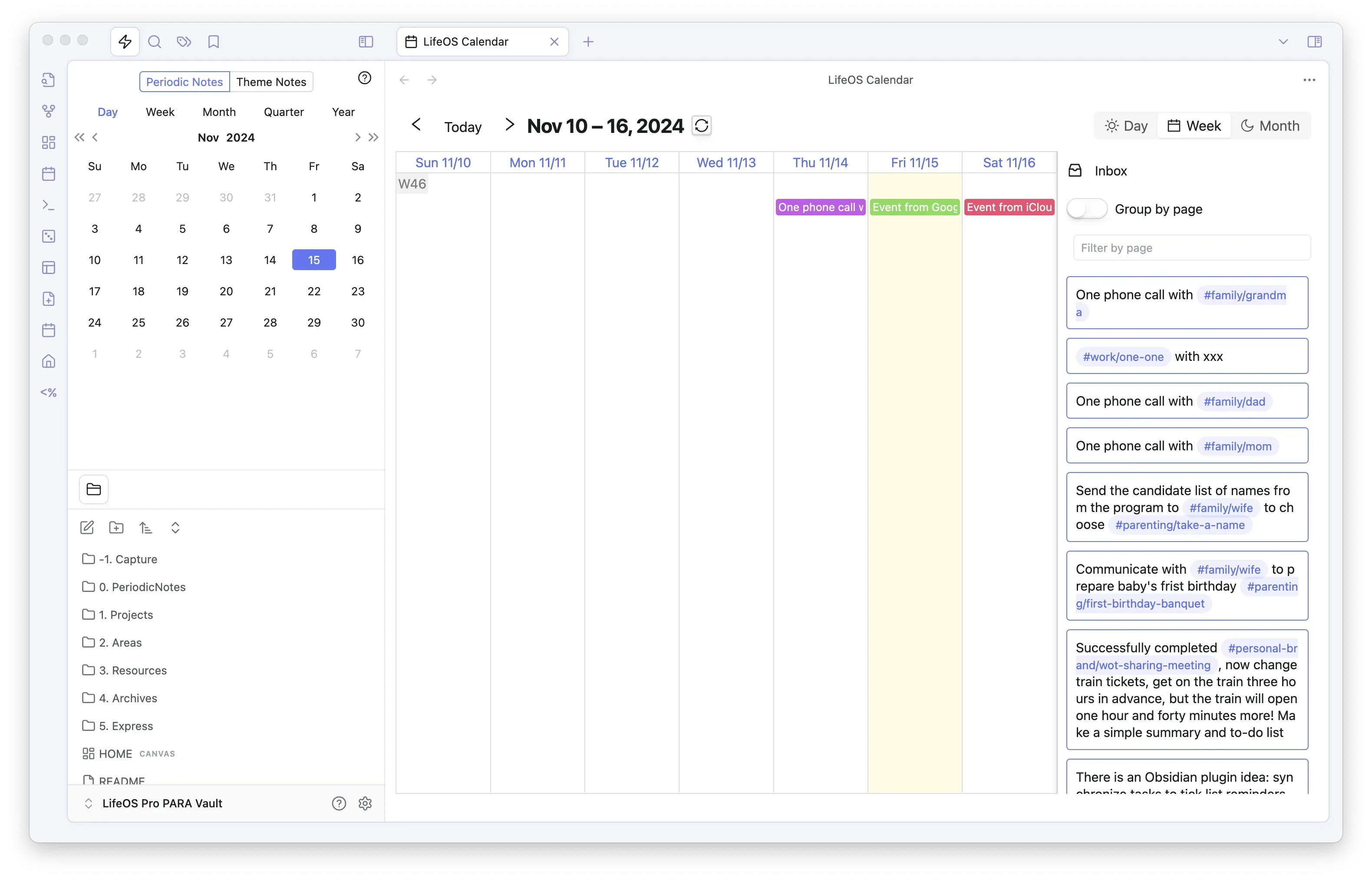
As the deadline gets closer, turn project tasks into time blocks. Open Calendar Pro and schedule the critical work.
Avoid large tasks like "write report". Split them into 60-90 minute units:
- Clean the raw feedback table
- Merge duplicate issues
- Write three findings
- Prepare the product review version
Step 6: close with a short review
After the project ships, add a short review to the theme note:
This turns the project note into reusable experience, not just an archive.